Docs
Web app overview
What the Metaspry web app does, what needs an account, Free vs Pro limits, the phone layout, installing it as an app, and finding Docs, Support and shortcuts.
Last verified against the web app (547aebd) and extension 1.0.27.
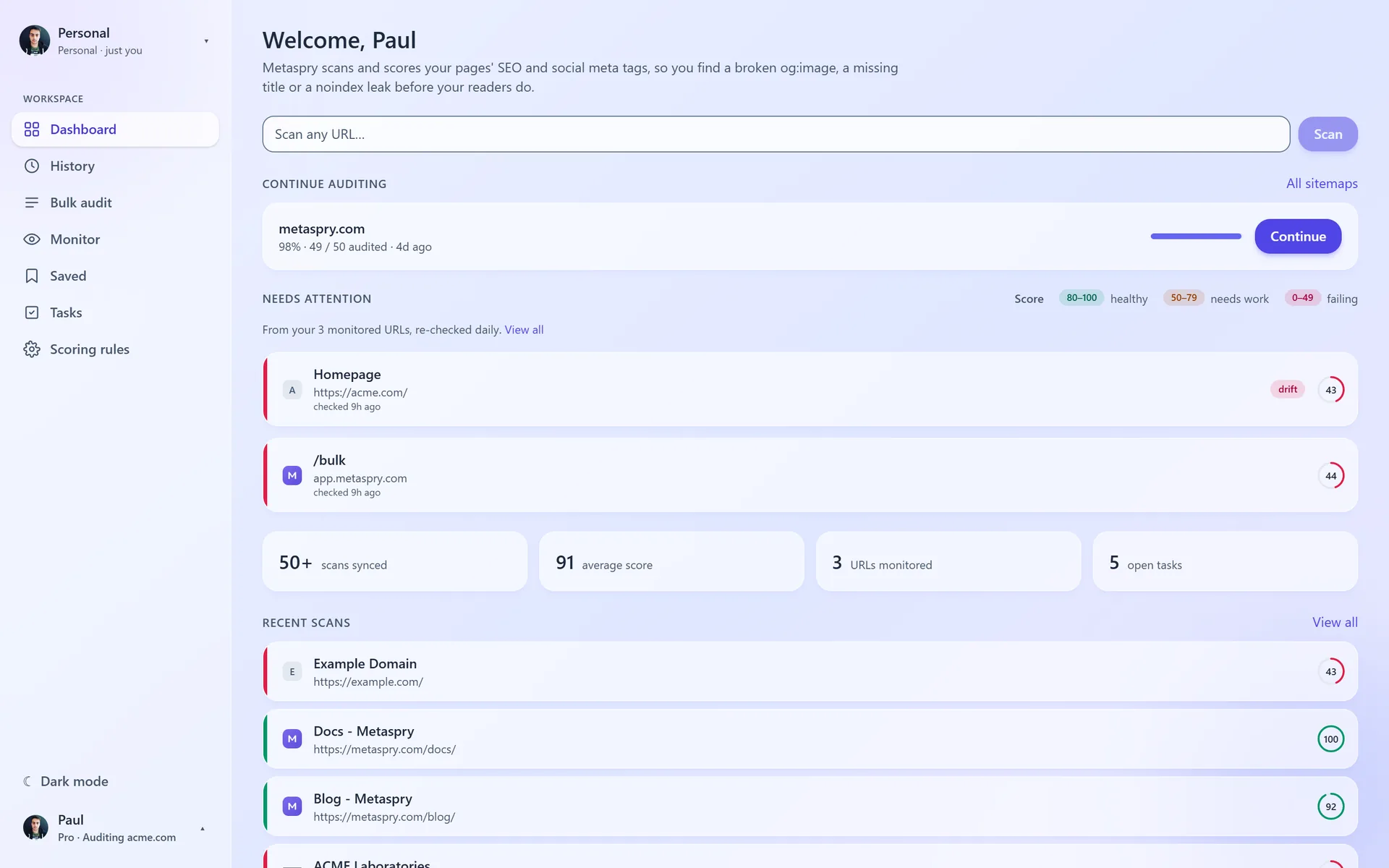
The web app at app.metaspry.com is where your scans live after the extension runs them, and where you scan pages without the extension: one URL at a time, a list of URLs, or a whole sitemap. It runs in the browser; there is nothing to install, though you can add it to your phone or computer as an app if you like.
What needs an account
- The extension works without an account. Scans stay on your device.
- The instant check on metaspry.com/check needs no account either: one URL, its score and the three worst issues.
- Everything in the web app needs a free account. Sign up with an email and password or with Google at app.metaspry.com/signup. Signed in, the extension also syncs your scans to the app.
What is in it
| Page | What it does | Plan |
|---|---|---|
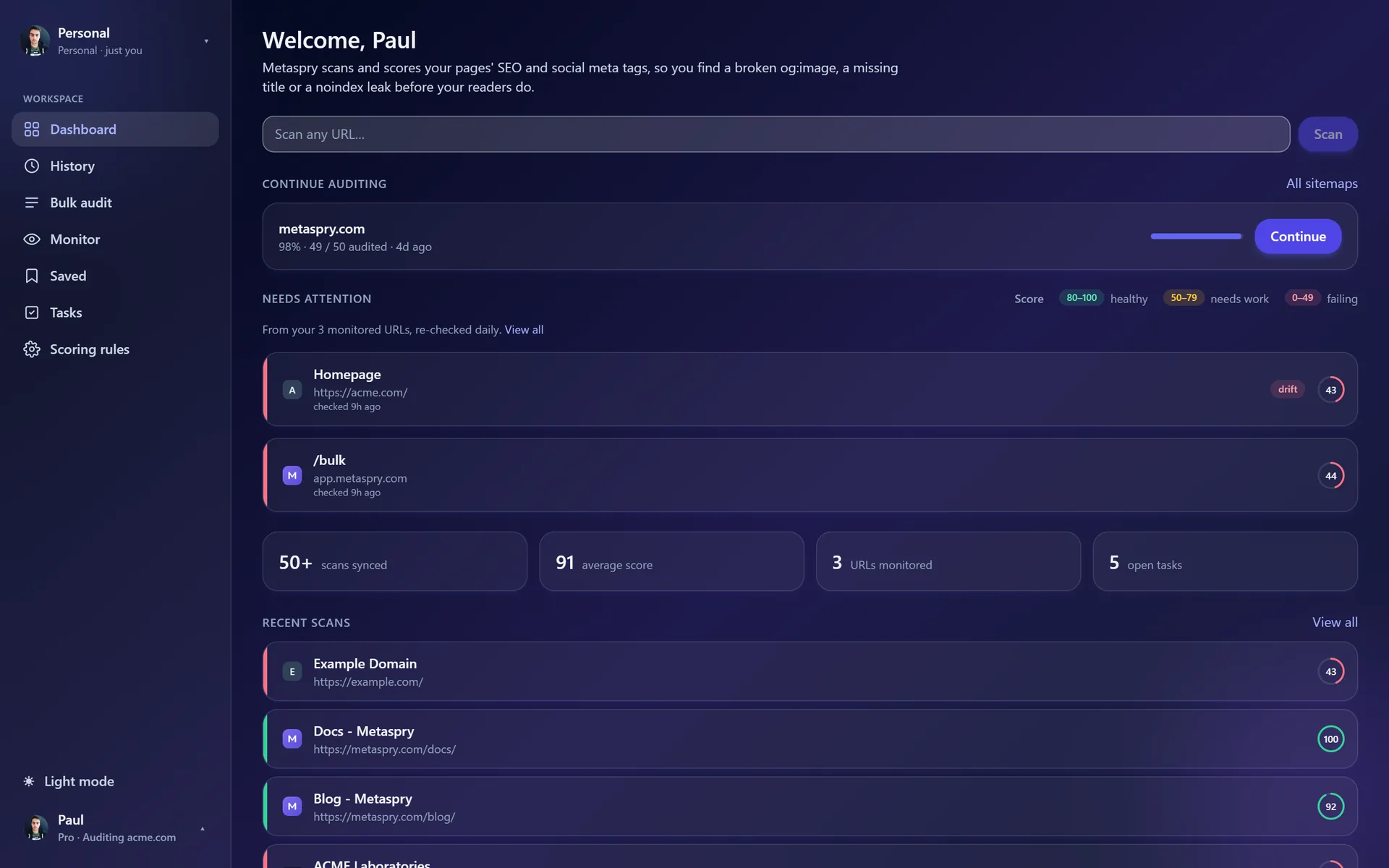
| Dashboard | The Scan box, runs to continue, pages that need attention, recent scans and monitored URLs | All |
| History | Your recent scans from the extension and the app; tick two to compare | All |
| Bulk audit | Audit a list of URLs or a sitemap, then Continue where you stopped. See Bulk URL audit | All (Free: light) |
| Monitor | Daily re-scans with email and Slack alerts. See Drift monitoring | Pro, Team |
| Saved | Folders of scans. See Saved folders | All |
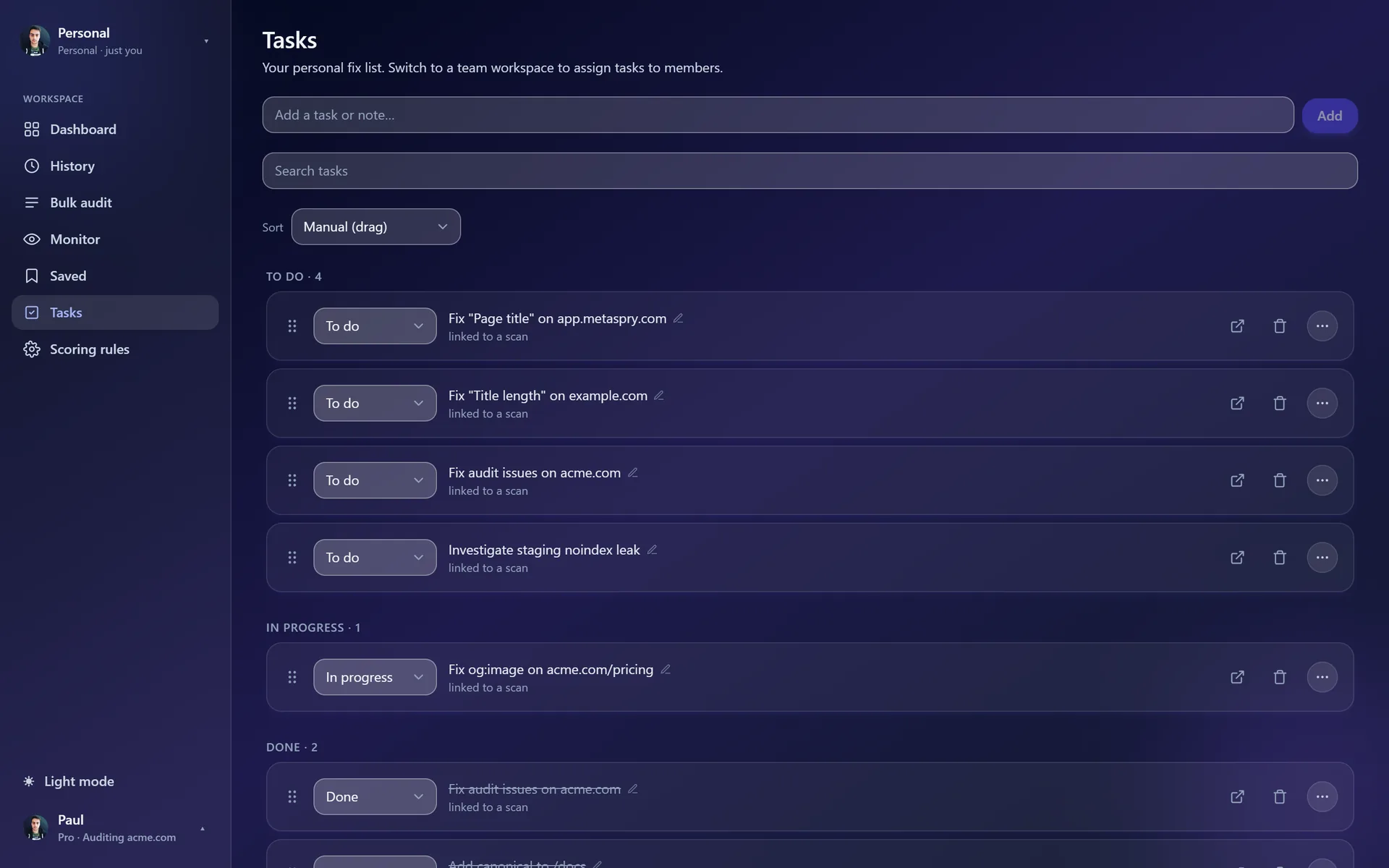
| Tasks | A fix list, linked to scans; assignees in a workspace | Pro, Team |
| Scoring rules | Your length ranges and severity weights. See Custom scoring rules | Pro, Team |
| Compare | Two scans side by side. See Compare scans | All |
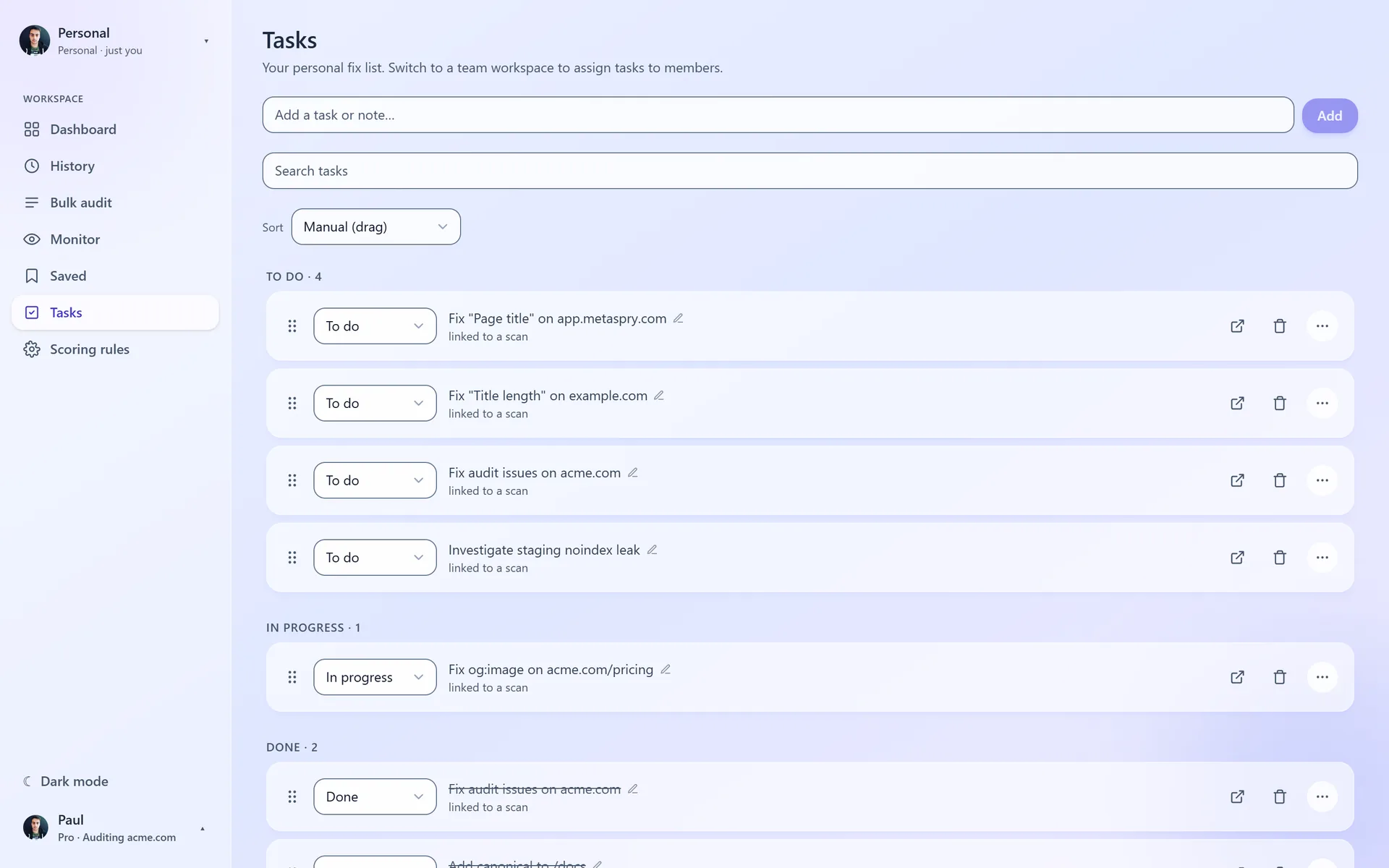
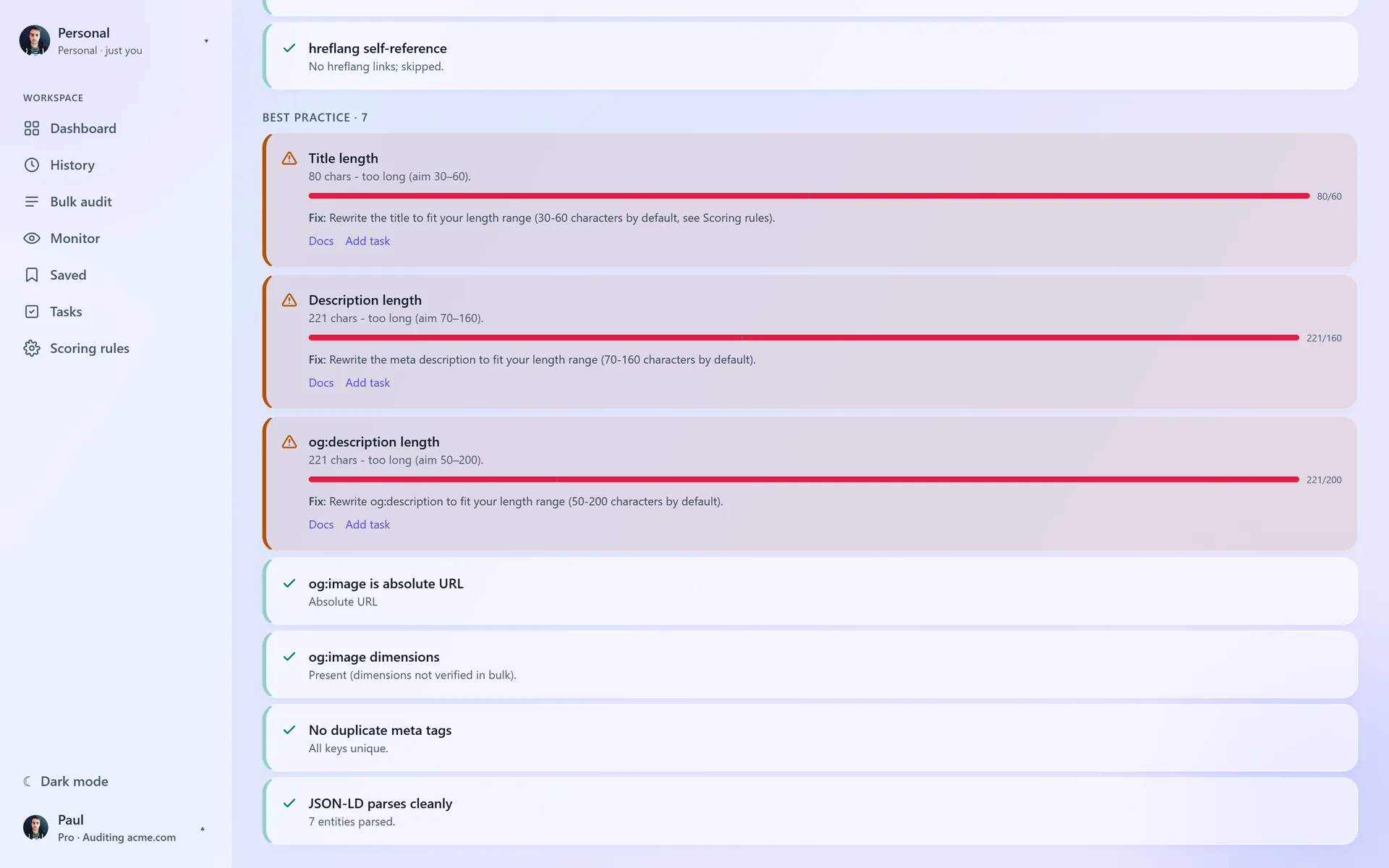
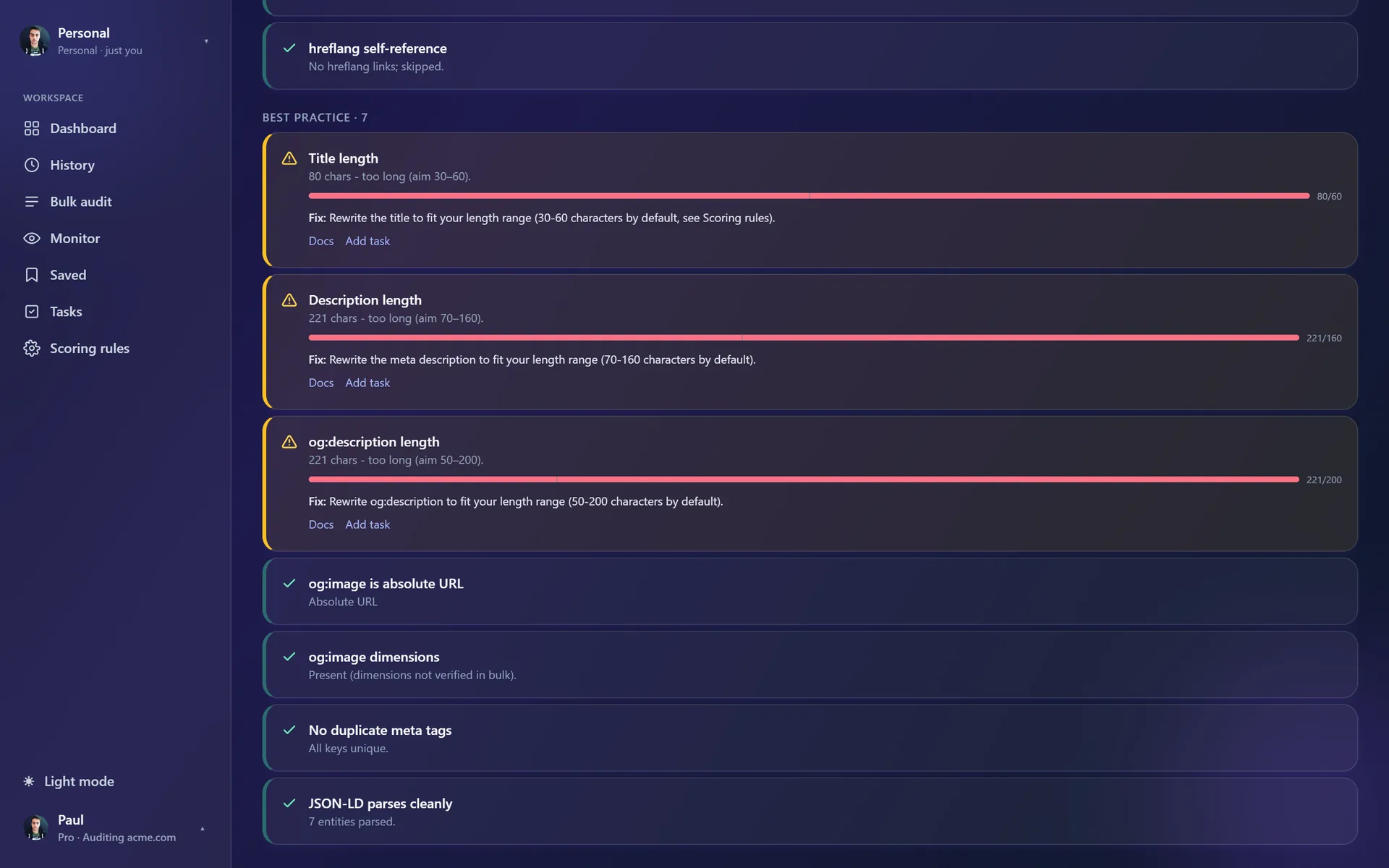
A scan page has up to six tabs: Audit, Previews, Tags, Site (scans from the extension), AI readiness and Tasks (Pro and Team, or when the scan already has tasks). Every warning or failing rule on the Audit tab says how to fix it, links to its entry in Audit rules and can become a task.
Free, Pro and Team
| Free account | Pro | Team workspace | |
|---|---|---|---|
| Scan box and bulk audit | 5 scans a month, 10 URLs per batch (a Scan box scan or a bulk batch counts as one) | 200 URLs per batch, 2,000 URLs a month | 300 URLs per batch, 3,000 URLs a month per member |
| URLs kept per bulk run or sitemap page (audited one batch at a time) | 1,000 | 1,000 | 1,000 |
| History | Your 10 most recent scans | Your 50 most recent, plus up to 20 earlier versions of each page | Pro-length for every member, whatever their own plan |
| Monitoring | None | Up to 50 URLs | Up to 250 URLs per workspace |
| Tasks and custom scoring | No | Yes | Yes |
| Compare, Saved folders, shareable snapshots | Yes | Yes | Yes |
| Workspaces | - | One shared workspace with 2 seats (you and one member, plus up to 10 viewers) | 3 seats or more; viewers up to 5 per seat |
Prices are on the pricing page. There is no free trial; upgrading happens in the app (Upgrade to Pro in the sidebar). Monitoring pauses when nobody has opened Monitor in that workspace for 14 days, and resumes when someone does.
On a phone
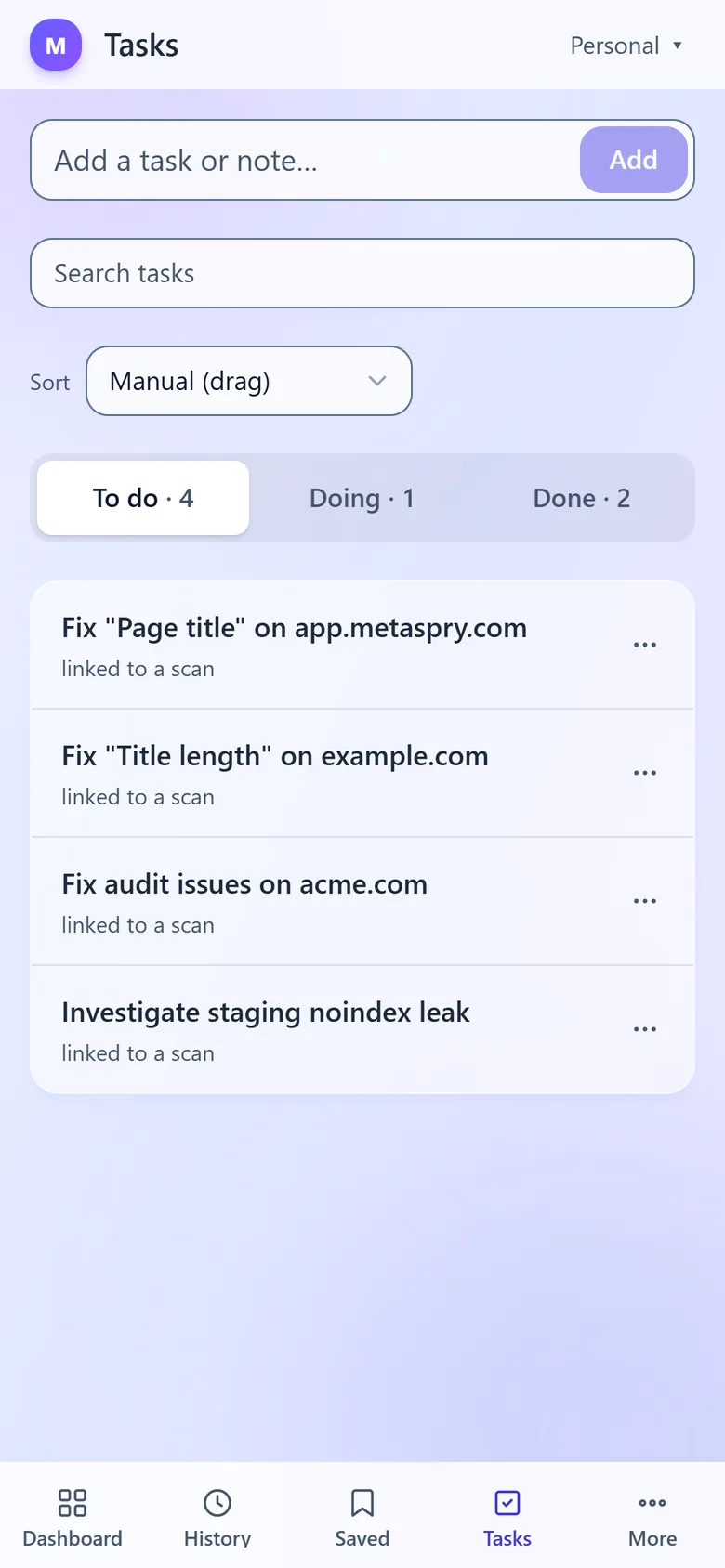
Below tablet width the sidebar becomes a bar at the bottom with Dashboard, History, Saved, Tasks and More. More opens a sheet with your account, the workspace switcher, Bulk audit, Monitor, Scoring rules, Upgrade to Pro (when it applies), the theme switch, Profile, Docs, Support, Keyboard shortcuts and Sign out.
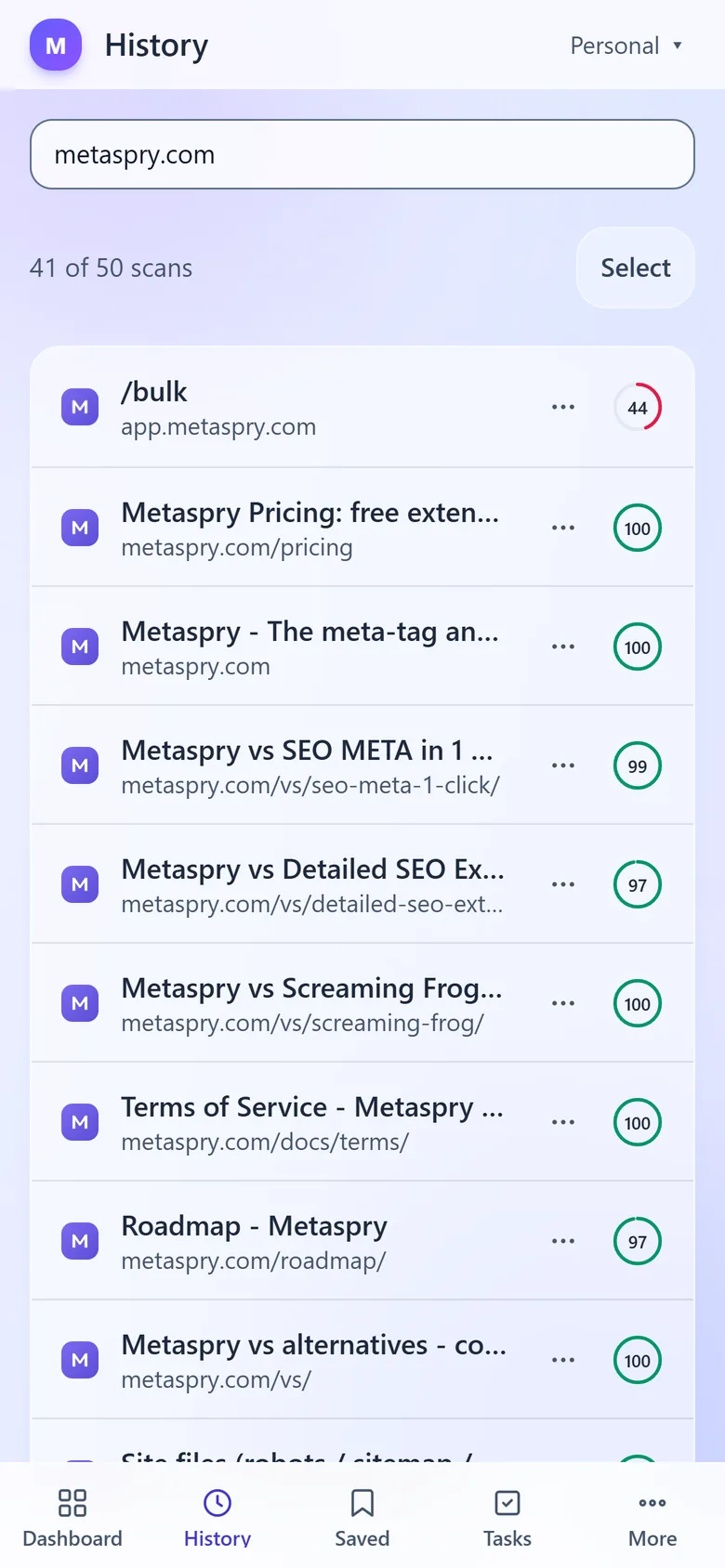
Lists use one line per row. Row actions are in the … menu, which opens as a sheet. On History and Saved, Select (or a long-press on a row) turns on selection: tap rows to pick them, and the action bar sits above the tab bar. Tasks shows one column at a time: To do, Doing or Done.
Install the web app
You can put Metaspry on your home screen, Start menu or Dock. It opens in its own window without the browser’s address bar, starts on the dashboard and updates itself. It is the same web app: free, no app store, and it needs a connection to load or save scans (offline, it opens and says so).
Android (Chrome, Samsung Internet)
- Open app.metaspry.com and sign in.
- Tap Install app under More, or Install on the “Put Metaspry on your home screen” card on the dashboard. The browser’s menu (⋮ > Install app or Add to home screen) works too.
- Confirm with Install. Metaspry appears on your home screen and in your app drawer. Long-press its icon for shortcuts to Scan a URL, History, Saved and Tasks.
iPhone and iPad (Safari)
- Open app.metaspry.com in Safari.
- Tap Share (the square with an arrow; on iOS 26 and later it is under •••), then Add to Home Screen, then Add. Install on the dashboard card, or Install app under More, walks you through the same three steps.
- Open Metaspry from your home screen and sign in once more. An app added to the home screen keeps its own sign-in, separate from Safari’s.
Chrome, Firefox and other browsers on iPhone and iPad are told to open the page in Safari, where Add to Home Screen is always available.
Windows and Mac (Chrome, Edge)
- Open app.metaspry.com and sign in.
- Click the install icon at the right of the address bar, or Install app in the account menu at the bottom of the sidebar.
- Metaspry opens in its own window and lands in the Start menu (Windows) or Launchpad and Dock (Mac). Right-click its taskbar or Dock icon for the same shortcuts.
The dashboard card appears on phones and tablets, from your second visit, and never inside the installed app. Not now hides it for 30 days; Install app stays under More on a phone, or in the account menu at the bottom of the sidebar. When a new version of the web app is out, a message offers Reload; nothing reloads by itself.
Where things are
- Profile, Docs, Support, Keyboard shortcuts, Sign out: the account menu at the bottom of the sidebar (your name and plan), or More on a phone. Docs opens this site; Support opens an email to the team.
- Workspaces: the switcher at the top of the sidebar, with Workspace settings and Create or manage workspaces. See Team workspaces.
- Shared links: your Profile lists every snapshot link you made, with Copy link, Open and Revoke.
Offline
If your connection drops, a banner at the top says “You’re offline - changes can’t be saved”, and buttons that would save something are disabled until you are back online. Nothing is queued for later. The installed app still opens without a connection and shows the same banner.
Keyboard shortcuts
Press ? for the list. g then a letter jumps to a page (g d Dashboard, g h History, g b Bulk audit, g m Monitor, g s Saved, g t Tasks), / focuses the Scan box, 1-6 switch tabs on a scan page, and s swaps the sides on Compare.
Related
- Install + first scan - the extension
- Cloud sync - how extension scans reach the app
- Scan a URL - the Scan box