Docs
Drift monitoring
Monitor URLs, re-check them daily, and get an email and Slack alert when a score drops below your threshold or a required tag fails. Pro.
Last verified against the web app (547aebd) and extension 1.0.27.
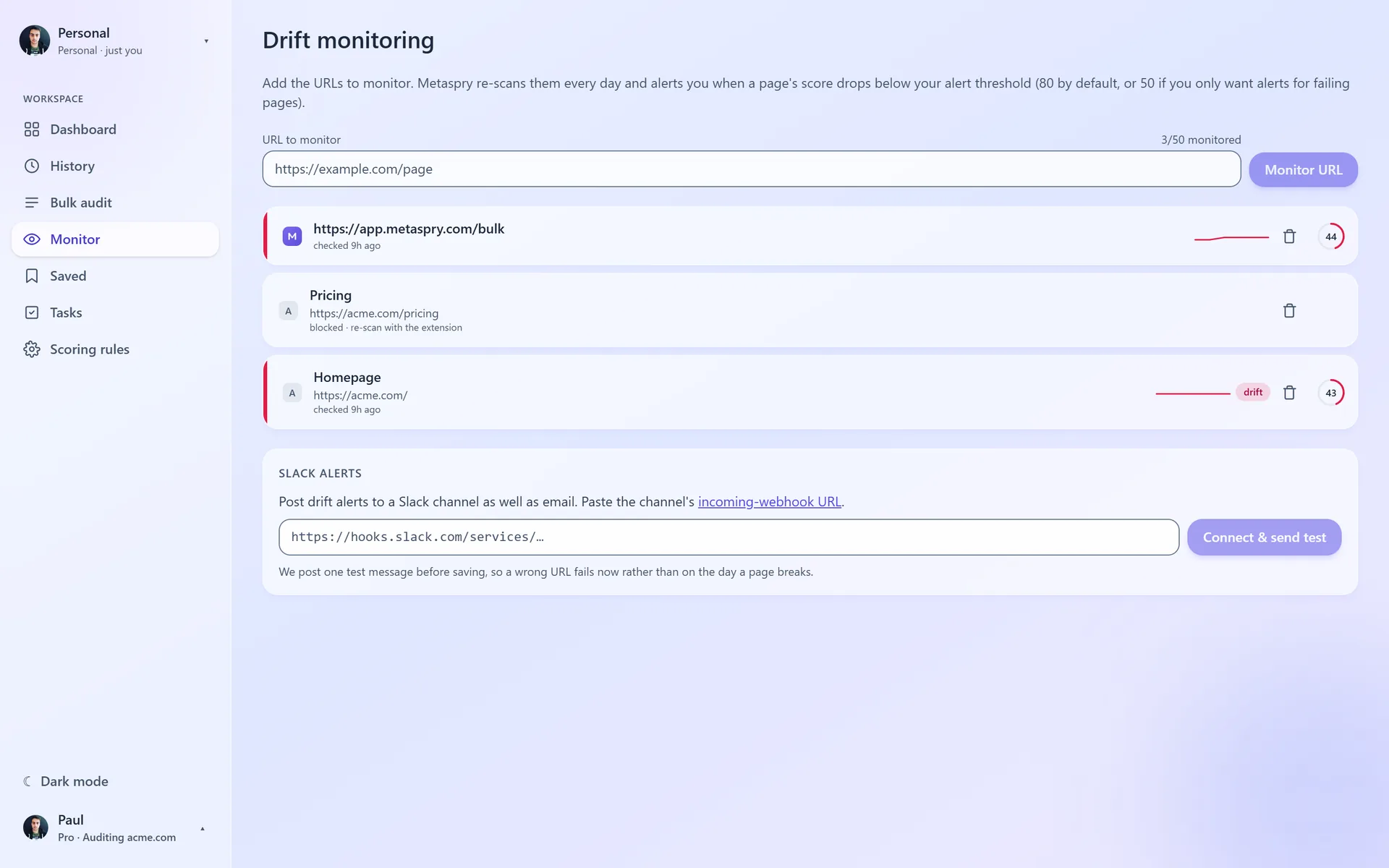
Drift monitoring is a Pro feature (and part of every Team workspace). Add the URLs that matter to Monitor, and Metaspry re-checks them every day and alerts you when a page’s score drops below your threshold or a required tag starts failing - so you find out before your audience does.
The pain
You ship a redesign on Tuesday. The new template silently changes og:image. You find out from a Slack share that looks broken on Friday afternoon.
The industry calls this template drift - one CSS or partial change cascades across many pages and nobody notices until rankings move or shares stop converting. Drift monitoring brings that check down to single-URL granularity.
What each check compares
Every day Metaspry scans each monitored URL with the same 19 audit rules and compares the result with the previous check:
- Score - the weighted 0-100 number and its band: 80 and up is healthy, 50-79 needs work, under 50 is failing. A failing required rule caps the band at needs work, whatever the score.
- Rule results - which rules got worse or recovered since the previous check (for example
og:imagenow failing, or the description now too long).
The daily check does not re-run the AI-readiness (AEO) checks and does not compare tag values one by one. For tag-level changes, open the scan: its Changed since card and Compare show which tags changed against earlier versions of the page (see Compare scans).
How it works
- Add a URL on the Monitor page, or click Monitor on a scan (that reuses the scan’s score, so it costs nothing).
- Metaspry re-checks it every day.
- Each check compares the score and the rule results with the previous one.
- When the score crosses below your threshold, or a required tag that passed at the previous check fails now, the URL is flagged in the app and you get an alert.
When an alert is sent
A URL alerts on either of two triggers:
- The score crosses below your threshold. The threshold is 80 (“needs work”) by default, or 50 (“failing”) if you pick that for the URL. It has to be a crossing: the previous check was above the threshold and this one is below. A page that loses a point but stays above does not alert, and a page that is already below when you add it is not flagged.
- A required tag starts failing. The six required rules are the page title, meta description,
og:title,og:description,og:imageand being indexable (nonoindex). If one of them passed or warned at the previous check and fails now, you get an alert even when the score stays high - a healthy page that loses itsog:imagedrops from 100 to 91 and would never cross 80. Recommended and best-practice rules never alert on their own.
Who gets the alert
- Email goes to the account’s email address. For a workspace, it goes to the owner and every member; viewers are not emailed.
- Slack: on the Monitor page, paste a Slack incoming-webhook URL (
https://hooks.slack.com/services/...) and press Connect & send test. Metaspry posts a test message and saves the webhook only if Slack accepts it, so a wrong URL fails right away. Alerts then go to Slack as well as email. A failed Slack post is shown on the card, because Slack sends no bounce. Connecting Slack needs Pro personally, or owner or member rights in a paid workspace.
An email names the page and the drop - “Metaspry: Pricing dropped to 62”, or “Metaspry: Homepage: Open Graph image is failing” for a required tag - lists up to 8 changes since the previous check, and links to Monitor. Slack gets the same content.
What you’ll see in the app
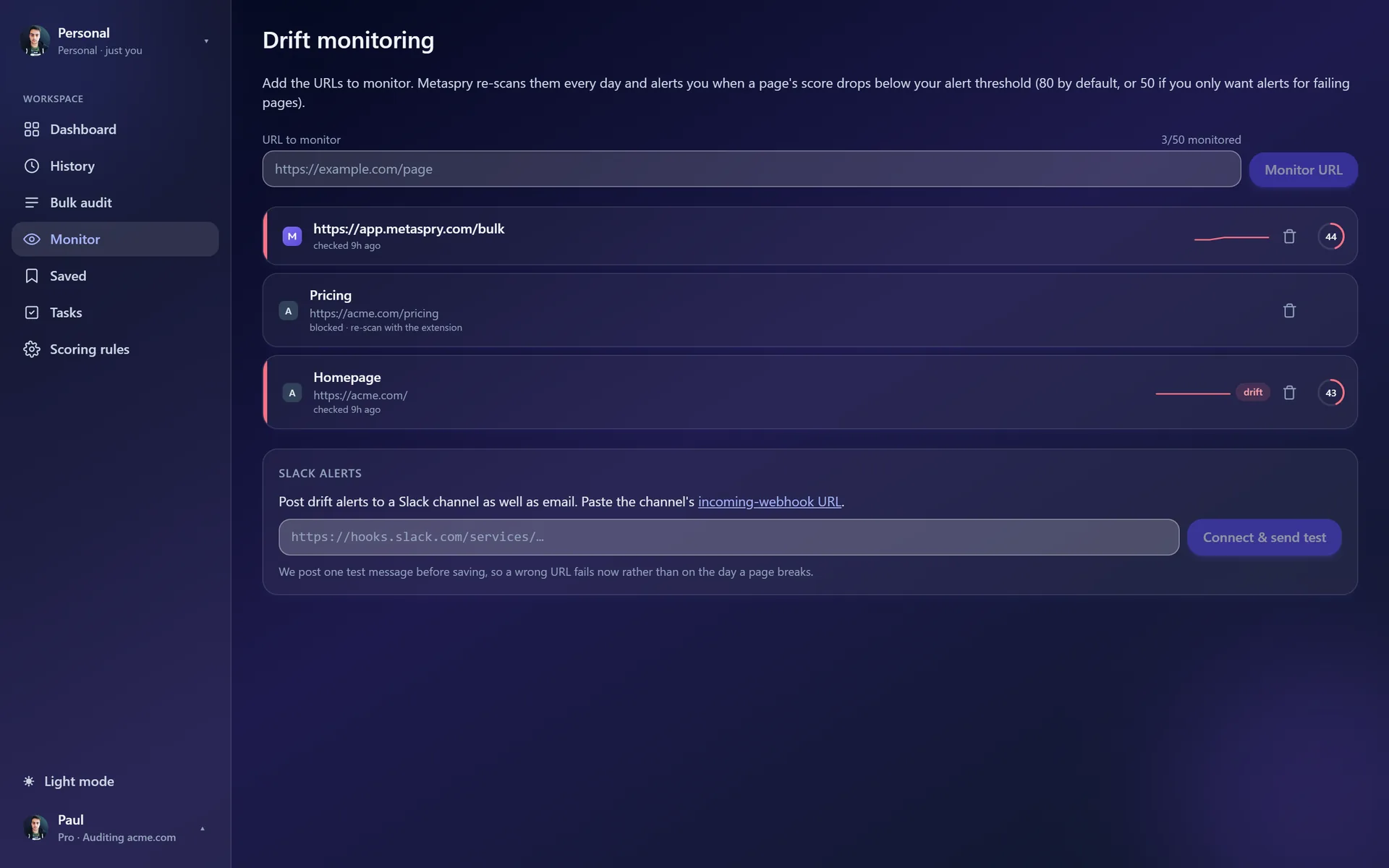
The Monitor list shows, per URL:
- Score (current, and the change since the previous check)
- When it was last checked
- A score trend once there are two checks
- A drift badge while the URL is flagged, or snoozed
Click into a URL for the detail view:
- Score trend with your alert threshold, marking where the page crossed below it and came back
- What changed at the last check: the rules that got worse or recovered
- A banner saying why it is flagged (“Score dropped past your alert threshold”, or “A required tag started failing” with the tags)
- Alert me when: “the score drops below 80, or a required tag fails” or “the score drops below 50, or a required tag fails”
- Snooze, and a link to the full scan, where you can compare earlier versions of the page
Tiers
| Tier | Monitored URLs | Re-scan frequency |
|---|---|---|
| Free | None | - |
| Pro | Up to 50 URLs | Daily |
| Team | Up to 250 URLs, shared across the workspace | Daily |
Daily checks pause when nobody has opened Monitor in that workspace for 14 days; opening it again resumes them.
Why per-URL
Whole-site change monitors crawl tens of thousands of URLs on a fixed cadence and are priced accordingly. Most teams don’t need that. You need to know if the handful of pages that drive your traffic broke overnight - and that’s exactly what monitoring a URL gives you.
Related
- Audit rules - what gets scored, and which rules are required
- Compare scans - see exactly which tags changed
- Cloud sync - the history these scans write to
- Indexability conflicts - the four-signal cross-check