Docs
Saved folders
Keep scans in named folders in the web app: search every folder, select rows to move or remove, reorder by keyboard or drag.
Last verified against the web app (547aebd) and extension 1.0.27.
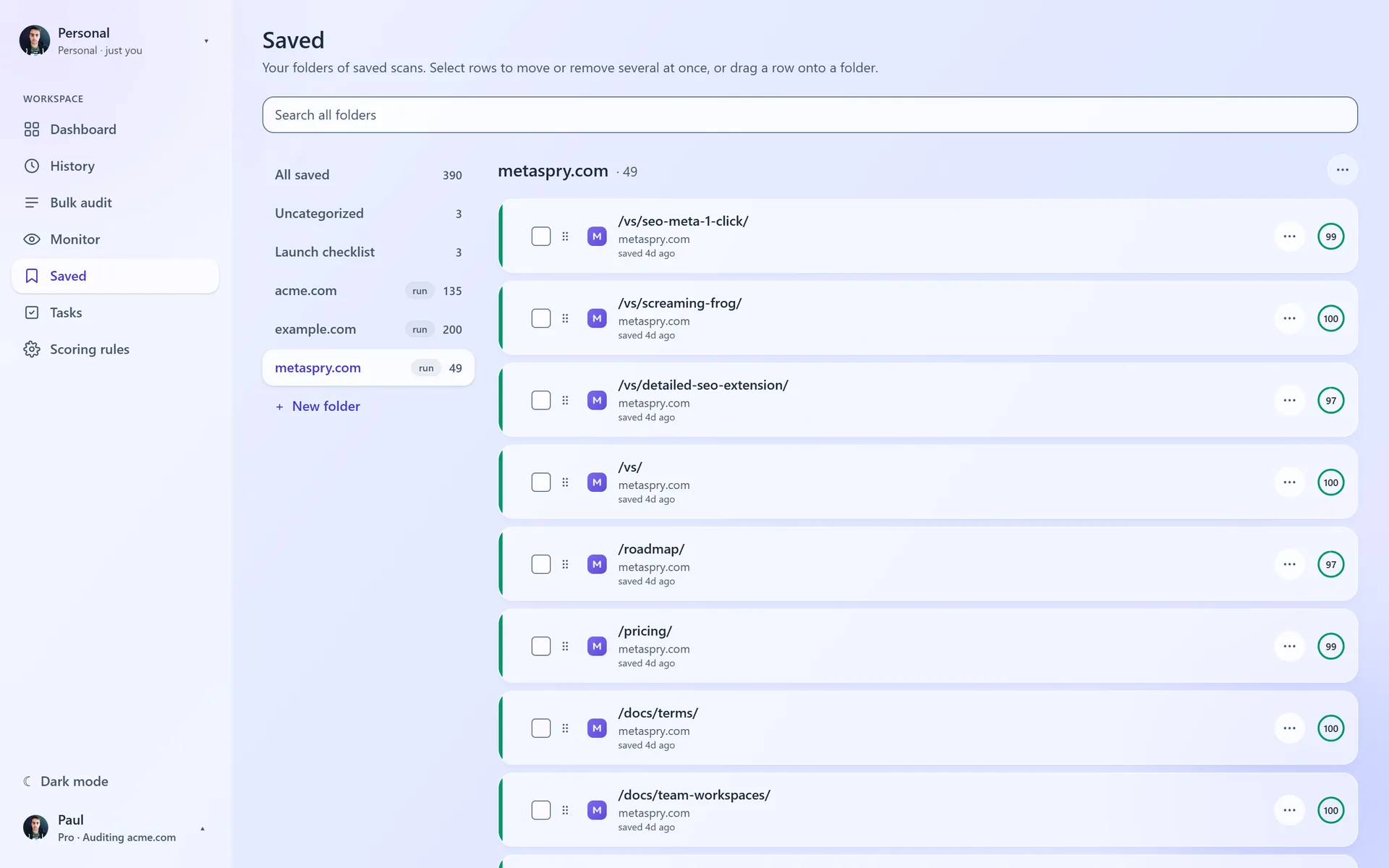
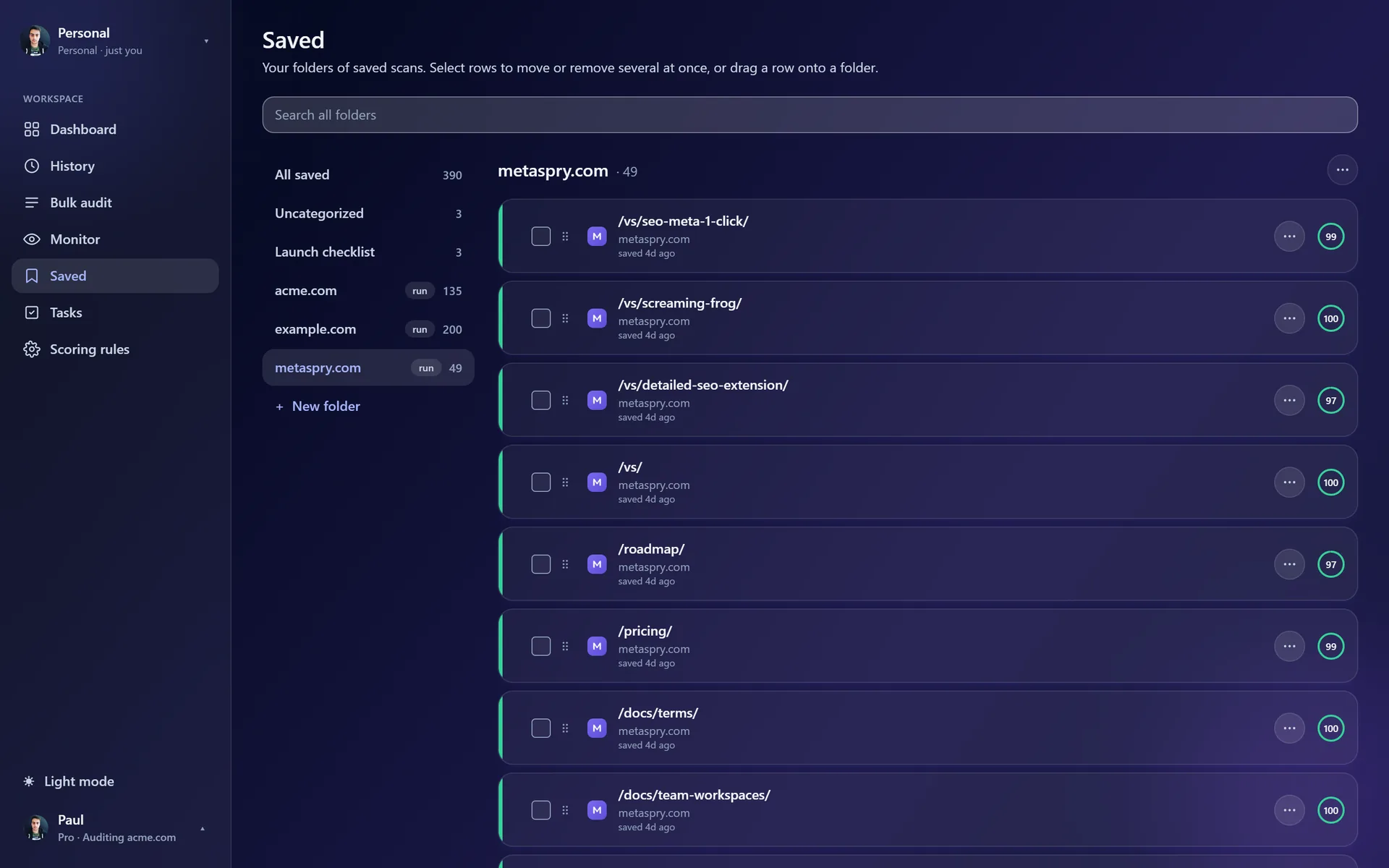
Saved (app.metaspry.com/saved) keeps scans in folders you name, next to the results of your bulk runs. It is free on every plan.
Saving a scan
- In History, use the bookmark button on a row (Save to a folder). A filled bookmark means the scan is already saved; you can add it to another folder.
- On a scan page, press Save. The button shows how many saved copies of that scan the workspace already has.
A bulk run’s results show up here too, as a folder tagged run.
Folders
On a wide screen the folders are a rail on the left: All saved, Uncategorized, then every folder with its item count, and + New folder at the end. On narrower screens the rail becomes a row of chips you scroll sideways.
The folder’s menu (… next to its name) has Rename, Delete folder and, for a bulk run, Open bulk run. Deleting a folder moves its items to Uncategorized. Deleting a bulk run’s folder also removes that run from Bulk audit; the scans themselves stay in History.
Each folder shows 20 items per page. The folder, the search and the page are in the address bar, so Back, reload and a shared link return to the same view.
Search
The search bar at the top searches every folder at once, by title, URL and host name. Results come as one list, each row tagged with its folder. Clear the search to return to the folder you had open.
Selecting, moving and removing
Tick rows to select them; shift-click selects the range from the last row you clicked. A bar appears with Move to, Remove (it asks first) and Clear. One message confirms each action, for example “Moved 12 items to launch”.
Each row’s menu (…) has Open scan in new tab, Open page in new tab, Move to another folder and Remove. Inside a folder you made yourself it also has Move up and Move down, the keyboard way to reorder.
On a desktop you can also drag:
- Drag a row onto a folder in the rail to move it there. If the row is part of a selection, the whole selection moves.
- Inside a folder (not in All saved or in search results), drag a row onto another row to reorder.
On a phone
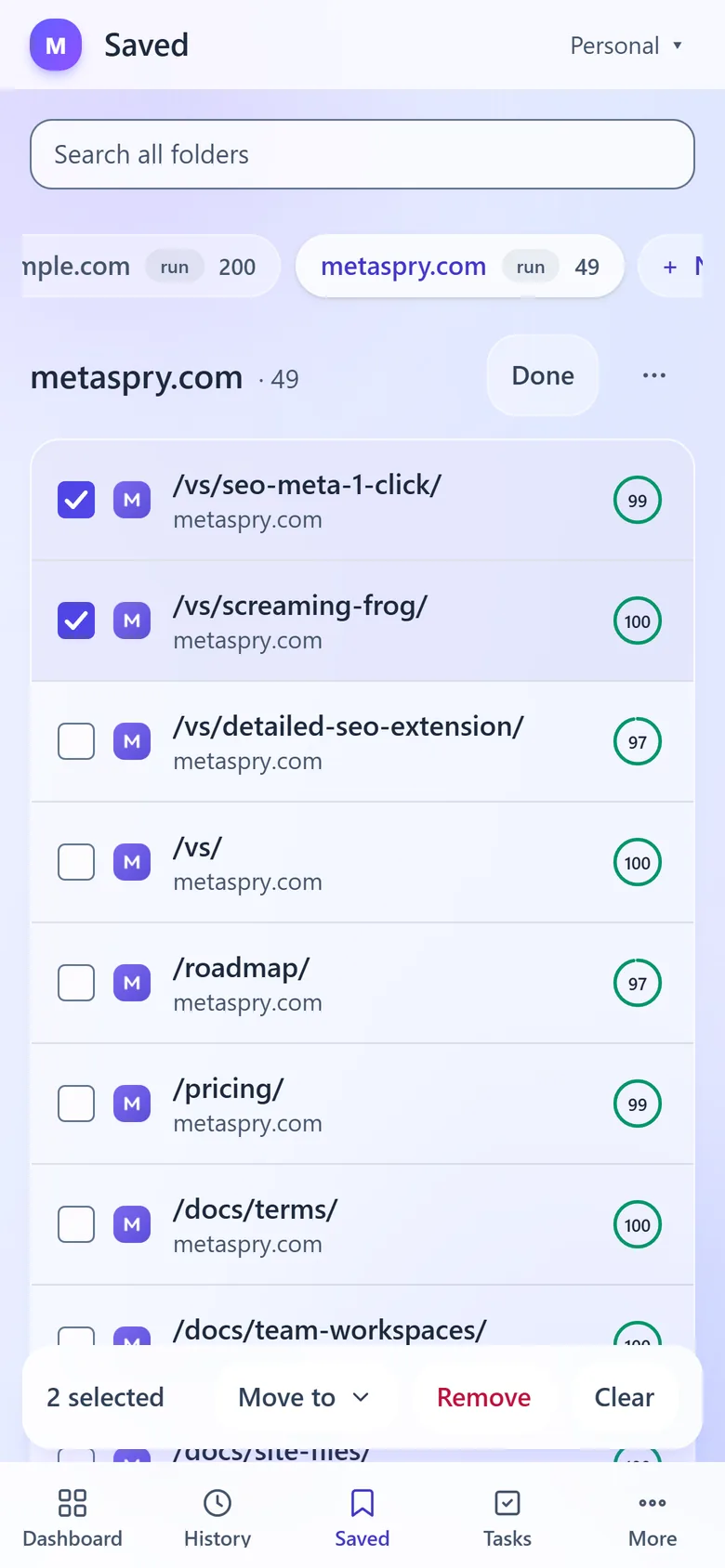
Rows are one line each. Checkboxes appear only after you press Select (next to the folder’s menu) or long-press a row, which also selects it. In that mode a tap selects or clears a row instead of opening it, and the bar with Move to, Remove and Clear sits above the tab bar. Done leaves the mode. There is no drag on a phone; use Move up, Move down and Move to in the row’s menu.
In a workspace
Folders belong to the workspace you have open: members share them. Viewers can open saved scans but cannot create, rename, move or remove anything.
Related
- Compare scans - compare two saved scans
- Bulk URL audit - where run folders come from
- Web app overview - every page of the app